Practice worksheet
Why Do Screen Colors Look Different in Print? A Proofing Checklist
Screens emit light; printed materials reflect it, with different viewing conditions and reproduction limits. Check the source profile, target process, paper and conversion workflow before changing the colors. An original RGB/CMY illustration, supplier question sheet, proof record and six explained scenarios help you distinguish a preview from the physical job you are approving.
Screens emit light; prints reflect it
A display and a printed sheet make an image in different ways. The display emits light; a print reflects illumination from its surroundings through the interaction of ink and substrate. Changing the viewing light can change the print’s appearance even when the file and sheet are unchanged. Adobe’s workspace guidance connects this difference to monitor setup, lighting and paper choice. [1]
That does not mean every mismatch is unavoidable or that all printers have a smaller gamut than every RGB space in every region. A gamut is the range a defined system can reproduce. Displays, RGB working spaces and specific print conditions have different limits. Some vivid screen colors may fall outside the intended print condition; matching them needs a managed transformation and a realistic target.
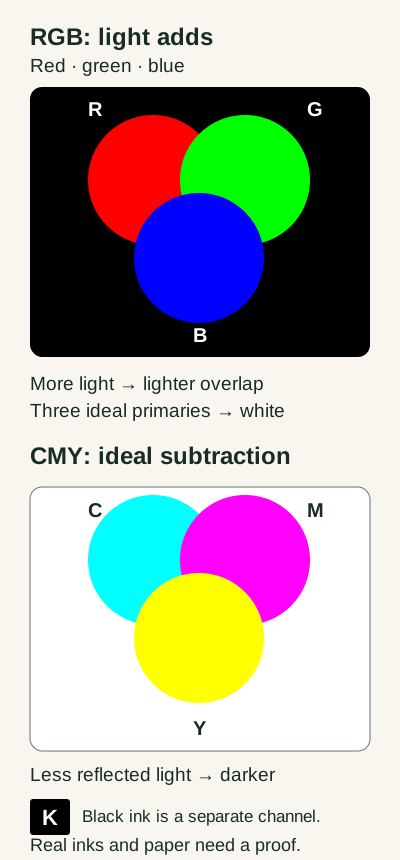
Real process printing commonly adds a separate black channel, K, to cyan, magenta and yellow. The ideal black overlap in the illustration is a simplified model, not a claim that equal real ink percentages create an appropriate production black. Leave ink recipes, separation and total-ink limits to the defined output workflow and supplier specifications.
A color value needs its profile and output context
RGB is a model, not one universal color space. The same numeric RGB values need an encoding or profile to be interpreted. Similarly, a CMYK percentage set needs a defined output context. The ICC explains profiles as relationships between device coordinates and a standard reference space, allowing input and output profiles to be combined. [2]
Keep the embedded source profile with the file, and ask which output profile describes the intended printing condition. A profile for one printer, ink and paper combination is not automatically a match for another. Adobe’s printing guidance specifically ties profile selection to the output device and paper. [3]
Assigning a different profile changes how existing values are interpreted; converting to another profile transforms values for a destination. Do not try to correct an unknown source by attaching whichever profile makes the preview look pleasing. Identify the actual source or seek help from the file’s creator.
A rendering intent controls how a transformation handles gamut differences. The ICC describes photographic, colorimetric and saturation-related uses; suitability depends on the task and source/destination conditions. [2] Rather than claiming one setting is always best, record the supplier’s specified workflow and inspect the critical regions in its proof.
Ask the supplier before converting or exporting
Adobe’s commercial-print guidance says to contact the prepress facility first: it may request RGB with embedded profiles, CMYK files or a specified PDF/X workflow. [4] “Everything for print must be converted to generic CMYK” skips that decision. Some printers also accept RGB at their interface and perform their own conversion, as the ICC FAQ explains. [2]
Use this original communication table to turn a vague request into a defined job. Wide tables can be scrolled sideways; keyboard users can focus the table region and use the arrow keys.
| Topic | Ask | Why it matters |
|---|---|---|
| Output process | Offset, digital, inkjet or another specified process? | Different systems have different output requirements. |
| Stock and finish | Exact paper or substrate, coating and finishing? | A profile or proof needs a defined target condition. |
| File delivery | RGB with embedded profile, converted CMYK or a specified PDF/X preset? | Avoid guessing a universal conversion or export preset. |
| Conversion ownership | Who converts the file, with which output profile and settings? | Prevent undocumented or repeated conversion. |
| Critical color | Which logo, neutral or image region must be reviewed? | A named concern is more actionable than “make everything match.” |
| Proof type | Soft proof, color-managed printed proof or production sample? | Each represents different aspects of the final job. |
| Review conditions | Where and under what lighting will the proof be evaluated? | The appearance of a print depends on viewing light. |
| Approval and changes | Which file revision is approved; what needs another proof? | A later export can invalidate an earlier review. |
Identify the important colors and image regions without promising a match that has not been demonstrated. For a color-critical logo, ask whether the proposed process can achieve the agreed appearance and whether a separately specified ink approach is needed. Spot inks, fluorescence and metallic effects have their own production requirements; a generic four-channel preview cannot approve them.
Keep an editable source or master and a clearly named delivery revision. Follow the agreed export and profile handling. Repeated conversions or undocumented last-minute changes make the proof harder to trace, even when the final filename looks familiar.
Choose a proof that answers the right question
A soft proof simulates a defined print condition on your display. Its usefulness depends on the source and proof profiles, the display profile and viewing setup. Adobe describes using a press profile with Proof Setup and Proof Colors to inspect possible output. [4] Check the saturated accents, neutral areas, highlights and shadows that matter to your image, rather than judging only a single logo swatch.
A printed color proof is a physical sample, but it is not necessarily printed with the final press and stock. Adobe’s hard-proof workflow simulates a target press through a desktop printer and its own paper profile. [5] Ask what the sample is designed to represent and what its limits are. A proof that simulates target color may not show final stock texture, coating, folds or other finishing.
A production sample can address aspects of the actual process and material that a simulation does not reproduce. Agree whether you need one, which revision it represents and which properties you will evaluate. These categories are not interchangeable approval stamps, and a home print is not automatically a contract-quality proof.
For a cafe menu, for example, you may need to check color, small price text, the actual cream stock and a laminated finish. A screen simulation can help review expected tonal change; a supplier’s proof or sample must cover the physical properties you intend to approve. Record remaining questions rather than assuming a digital contrast calculation has measured the printed text.
Check the setup before changing the artwork
Use a calibrated and profiled display appropriate to the task, under stable viewing conditions. A very bright editing screen can make a print seem dark, but a universal “use half brightness” setting is not a calibrated target. Follow your display and calibration workflow, and keep the conditions recorded. Changing calibrated display controls may require recalibration. [1]
For desktop output, establish which part of the workflow manages color. Adobe describes Photoshop-managed conversion with the matching output profile and printer color correction disabled, or printer-managed conversion with the driver’s color handling enabled. [3] Use the model’s instructions to find those options. Do not unknowingly apply competing transformations or turn everything off without a defined workflow.
| Observation | Check first | What it cannot prove |
|---|---|---|
| Print looks much darker | Display brightness/profile, output profile, paper selection and who manages conversion. | That brightening the artwork is the first correct fix. |
| A vivid accent changes | Source profile, target gamut and a proof for that output condition. | That one generic CMYK percentage set will match every device. |
| Only another app looks wrong | Whether each app interprets the embedded profile and uses a managed display path. | That a screenshot proves the ink result. |
| Different stock changes the appearance | Whether the profile, proof simulation and final stock still refer to the same job. | That an earlier proof automatically approves the replacement material. |
| Proof differs from the final run | File revision, conversion, materials, production and agreed evaluation conditions. | Which party or single variable caused the change. |
A phone photo of a proof introduces camera processing, illumination and another display. It can document placement or help explain which area you mean, but it is a poor substitute for an agreed color evaluation. If physical color matters, retain the proof or sample identity and review it under the agreed conditions.
Only after the file, profiles, output and evaluation conditions are clear should you consider a targeted design change. Describe what changed and make another proof when required. “Looks closer on this phone” is an observation, not a measurement of the production result.
Keep the communication sheet and proof record together
Download the supplier questions, proof checklist and blank record (TXT). Fill in the known fields and mark unresolved ones. It is an original working template; no print sample or color measurement has been performed for you.
| Record item | What to retain |
|---|---|
| Job and target condition | Supplier / process / stock / finish: ______ |
| File reviewed | Filename / revision / embedded profile: ______ |
| Proof identity | Proof type / proof ID / date: ______ |
| Settings and viewing | Output/proof profile / conversion owner / lighting: ______ |
| Critical areas and observations | Logo / neutral / image regions; describe differences: ______ |
| Decision | Approve / revise / questions pending: ______ |
| Changes and next check | Exact change / new revision / reproof needed: ______ |
- Confirm the exact output process, stock and finish.
- Identify the file revision and its source profile.
- Record conversion ownership, output/proof profile and agreed settings.
- Identify the proof type and the target conditions it represents.
- Review the critical areas and physical text at the intended size under agreed lighting.
- Record approval, requested changes and questions still pending.
- Preserve the reviewed file and reassess changes that affect output.
In a useful observation, name the location and condition: “The accent in the heading looks less vivid in proof B on the stated stock” is more actionable than “your printer is wrong.” The first description leaves room to check the file and process; the second assigns a cause before the comparison has done that work.
If you also maintain a digital brand sheet, keep its sRGB pair checks and version note. Add a separate print record rather than replacing those values with an undocumented CMYK recipe. See the brand color usage guide for organizing the digital handoff.
Six decisions that prevent misleading approval
These original scenarios test file delivery, missing output context, proof scope, revision control, setup checks and digital versus physical readability.
Case 1
A printer explicitly requests RGB files with embedded profiles. Should you convert the file to generic CMYK “because print uses ink”?
Show answer and explanation for case 1
No. Follow the agreed delivery workflow.
Adobe describes both RGB delivery and preconverted CMYK workflows. Ask the supplier which source profile and export settings it needs. An unrequested generic conversion can remove useful information or target the wrong output condition.
Case 2
A saturated digital green shifts in a printed sample. Does typing a CMYK value from an online converter establish the correct replacement?
Show answer and explanation for case 2
No. The intended output condition and a reviewed proof are still needed.
RGB and CMYK labels do not identify a complete color-managed transformation. Check the source profile, output profile and actual job. If that color is essential, discuss process limits or a separately specified ink approach with the supplier, rather than treating a screen preview as a measured ink match.
Case 3
A printed proof uses different paper from the final menu. Is it automatically useless or automatically sufficient?
Show answer and explanation for case 3
Neither. Ask what the proof is designed to represent.
A color-managed hard proof may simulate another output condition on a proof printer and its paper. It may help judge color without showing the final stock’s texture or finish. A production sample can address different questions. Agree which properties and target conditions the proof covers before approval.
Case 4
The proof was approved, then a designer re-exported the artwork with another output profile. Does the approval carry over unchanged?
Show answer and explanation for case 4
Do not assume it does. Identify the new revision and ask whether another proof is required.
The approved item was a particular file and output setup. A conversion change can alter color separation and appearance. Preserve the reviewed file and compare the changed one instead of silently replacing it under the old approval date.
Case 5
Your home print is darker than your laptop. Is increasing every image’s brightness a reliable first step?
Show answer and explanation for case 5
Check the display and printing setup first.
A bright or unprofiled display, unsuitable output profile, wrong paper setting or repeated color conversion can affect the comparison. Adjust the artwork only after the setup and intended appearance are clear; otherwise the correction may create a new problem on a correctly managed system.
Case 6
A digital text/background pair passed its screen contrast calculation. Does that establish readable printed small text on textured stock?
Show answer and explanation for case 6
No. Inspect the physical text and actual substrate at the intended size.
The digital calculation concerns specified screen colors. Ink, paper, texture, type size and viewing conditions change the physical result. Keep the digital pair record, but add a separate print check; neither a palette swatch nor a ratio is a full production approval.
Sources and further reading
- Adobe Photoshop: Prepare your workspace for color printingDisplay calibration/profile, lighting, paper/ink/profile context and the limits of soft-proof previews. Broad numerical brightness and color-gamut claims are not treated as universal specifications.
- International Color Consortium: Frequently asked questionsSelected explanations of profiles, rendering intents, source/destination transformations, RGB printer interfaces and the distinction between changing interpretation and converting values.
- Adobe Photoshop: Print with color managementPhotoshop-managed and printer-managed workflows, matching device/paper profiles and avoiding competing color handling.
- Adobe Photoshop: Prepare images for commercial printingConsult prepress before RGB/CMYK/PDF-X delivery, preserve profiles, target a specific print condition and evaluate a soft proof.
- Adobe Photoshop: Print a hard proofA printed proof can simulate target press conditions using a different proof printer and its paper profile; accuracy depends on the described setup.