Practical guide
Using the 60-30-10 Color Rule on a Website
Use 60-30-10 as a starting sketch for a dominant field, supporting field and purposeful accent. Then assign readable text and actual component roles, compare the desktop and phone layout, and change the distribution when the reader’s task needs it. Explore normalized weights, two original layout sketches and six explained decisions. A percentage is neither measured page coverage nor an accessibility score.
What the 60-30-10 rule means for a website
The 60-30-10 color rule is a simple planning split: approximately 60 parts for a dominant color, 30 for a supporting color and 10 for an accent. On a website, it can prompt a useful hierarchy question: what should stay calm, what should support the content and where should emphasis help the reader act?
Treat the split as a sketch rather than a technical requirement. It is not a WCAG criterion, a measured optimum for every website or proof that a particular layout converts better. Start with the page’s actual task. A long explanation, an ordering page and a dense dashboard have different amounts of text, controls, imagery and supporting information.
Three planning categories also do not mean exactly three CSS color values. Text on the dominant field needs a foreground; text on the accent may need a different one. Borders, focus, errors and other meaningful states need their own decisions. Keep those roles explicit instead of forcing them into a decorative percentage.
The examples use fictional Cedar Desk Sessions, a workshop information page. Its names, colors, sketches and allocations are original teaching choices. No live client page, audience study or sales result is being reported.
Assign color jobs before counting area
| Role | Value | Where it belongs | Check |
|---|---|---|---|
| Dominant reading surface | #F7F3EA | Main content, open spacing and ordinary reading areas | Keep the actual text/background pair readable; do not fill an area merely to reach 60%. |
| Supporting surface | #E2E8F0 | A related-information panel or a separate section | Its placement and area can change on a phone. Keep its heading and purpose visible. |
| Purposeful accent | #9A3412 | A labelled action appearance and underlined links | Use where the reader needs the action. A percentage does not determine control size. |
| Text and on-accent text | #1F2937 / #FFFFFF | Copy on light fields / labels on the dark accent | Foreground colors are additional roles, not unexplained fourth and fifth background budgets. |
| Meaningful states | Specify separately | Error, selected, focus and other component states | A decorative accent is not a complete status or interaction system. |
In this example, cream gives ordinary copy a reading field, slate separates supporting information, and dark orange gives a labelled action or underlined link a deliberate appearance. Charcoal copy on the two light surfaces and white on dark orange are separate foreground/background decisions. The colors’ names do not establish their suitability; the actual pairs need checking.
Carbon’s color overview distinguishes a role from its value and uses neutral dominance with purposeful action colors in its own themes. Material Web likewise maps color tones to specific component roles and corresponding content colors. Those systems support planning by purpose; they do not prescribe this example’s three values or an exact 60-30-10 ratio for your page.
Keep semantic meanings separate from a broad brand accent. An error, a selected option and a decorative stripe do different jobs even if they happen to share a hue. Write the visible label or other cue that preserves each meaning, and assess the actual component and state.
Compare two layouts while preserving the roles
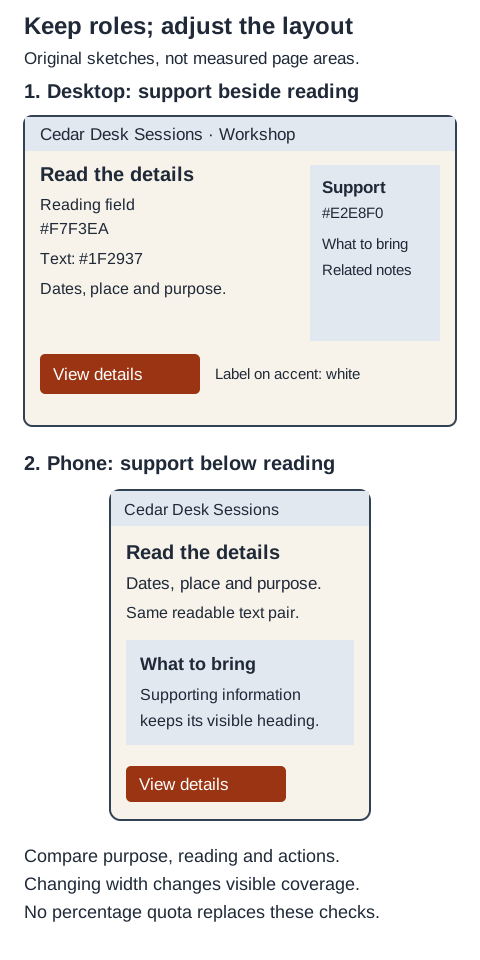
The desktop sketch places the “What to bring” panel beside the main explanation. The phone sketch places it below that explanation. Its heading still tells readers why the information is there, and “View details” remains a visible action label. The arrangement changes without redefining what the colors mean.
Review the narrow layout with real content, including longer headings and expanded instructions. Text wraps, a sidebar stacks and the visible screen includes a different portion of the document. Forcing every screenshot to preserve the same percentage can shrink copy or hide a useful instruction for no reader benefit.
Do not remove required content to make an accent look rare. If every panel competes for attention, first identify which information belongs to the main task and which can move to a supporting position. Adjust emphasis for that reason, then check the result at the viewport and content state you are actually designing.
Explore a chosen allocation without pretending to measure the page
Enter three whole-number weights from 0 to 1000, with at least one above zero. The explorer divides each weight by the total and multiplies by 100. A 12 / 6 / 2 choice therefore gives the same 60 / 30 / 10 allocation as 60 / 30 / 10. The numbers define an illustrative budget, not pixels measured from your website.
- Dominant reading field · #F7F3EA
- 60.0%
- Supporting field · #E2E8F0
- 30.0%
- Accent · #9A3412
- 10.0%
Initial sketch: 60 / 30 / 10. Enable JavaScript to normalize different weights. This bar is an illustration, not measured website coverage.
Try a reading-heavy 80 / 15 / 5 sketch, then a zero-accent 80 / 20 / 0 sketch. Neither is automatically better. Use them to ask whether the proposed emphasis fits the task. The bar changes; the original desktop and phone diagrams remain role-placement examples, rather than secretly becoming measurements of those inputs.
The calculation uses unrounded shares; the visible labels round to one decimal place. Three equal weights display as 33.3% each, so their displayed sum can be 99.9% even though the underlying shares total 100%. Do not report those labels as precision measurements of a rendered interface.
Define a scope before discussing real area. A screenshot can include photographs, letter shapes, borders, overlays and many shades. Nested rectangles overlap; a card occupies space inside the page field rather than adding new page area. Viewport and scroll position also change the visible denominator. This tool measures none of those things.
Check the actual text pairs separately from the ratio
| Role | Foreground | Background | Contrast | Ordinary text 4.5:1 |
|---|---|---|---|---|
| Body on reading field | #1F2937 | #F7F3EA | 13.26:1 | Meets |
| Body on supporting panel | #1F2937 | #E2E8F0 | 11.91:1 | Meets |
| Action label on accent | #FFFFFF | #9A3412 | 7.31:1 | Meets |
| Underlined link on reading field | #9A3412 | #F7F3EA | 6.60:1 | Meets |
| Underlined link on supporting panel | #9A3412 | #E2E8F0 | 5.93:1 | Meets |
| Counterexample: white on pale gold | #FFFFFF | #E7BE64 | 1.76:1 | Below threshold |
The first five pairs exceed 4.5:1 using the unrounded WCAG sRGB calculation. The pale-gold counterexample is deliberately listed as below the ordinary-text threshold; it is not used for white text in the sketches. An accent occupying only a small part of a layout can still make its label hard to read.
WCAG Contrast (Minimum) generally requires at least 4.5:1 for ordinary text and images of text, with defined exceptions. Large-scale text has a 3:1 threshold and a specific size/weight definition, generally at least 18 point regular or 14 point bold. Calling something a heading does not establish that it qualifies. The table checks every example against the ordinary-text threshold.
The method converts the specified sRGB channels to relative luminance and divides lighter luminance plus 0.05 by darker luminance plus 0.05. Only the displayed ratio is rounded. A result below 4.5 does not pass because its label rounds to 4.50. Changing either foreground or background creates a new pair to check.
These calculations assume solid, opaque colors. A photograph, transparency or gradient changes the actual background. Assess the implemented text instead of transferring the flat-color result to a different situation. If you change the palette, use the editable color usage guide to check its named pairs and document the change.
When to adjust the split and what still needs checking
Increase quiet reading space when the page’s useful content needs it. Move a supporting panel below the main task when a narrow layout benefits from that order. Reserve stronger emphasis for a clear, named action rather than repeating bright fills on every card. These are design decisions to examine in context, not new universal percentage prescriptions.
Allow product imagery or a photograph to contribute its own colors while keeping information on suitable surfaces. Do not distort every image to fit a three-color quota. Similarly, a dense data display may require labelled series and distinct meaningful cues that are separate from the website’s brand accent.
Assess links, focus and other component states individually. WCAG Non-text Contrast addresses visual information needed to identify controls, states and meaningful graphics, generally at least 3:1 against adjacent colors, with defined exceptions. It does not impose an identical border requirement on every decorative rectangle, nor require a default and hover color to contrast with one another when they are not adjacent.
WCAG Use of Color asks for an additional visible means when color alone communicates information or a particular meaning. Keep a selected option visibly identified and an error usefully explained. A favorable area allocation and text-pair table leave reading order, keyboard operation, resizing, labels and other requirements to be assessed on the actual page.
Treat a dark theme as a separate set of surfaces, foregrounds and states. Preserve the roles where useful, but do not assume that reversing a light sketch supplies a tested dark design. Record what changed and which real presentation still needs review.
Six website color decisions with explained answers
These invented cases distinguish area planning from contrast, meaningful cues and responsive layout. Choose an answer before opening the explanation. None describes measured audience behavior or a verified client design.
Case 1
Your article page uses a large neutral reading field. A planning sketch is 80 / 15 / 5 rather than 60 / 30 / 10. Has that difference by itself made the page inaccessible?
Show answer and explanation for case 1
No. The ratio is not a WCAG pass/fail rule. Check the actual content and presentation.
An area budget describes a composition choice, while WCAG text contrast compares a particular foreground with its actual background. A long article can reasonably need more quiet reading area than a short promotion. Check text pairs, information beyond color, required control/state cues and the wider implemented experience. Do not reduce useful reading space merely to make the sketch match a preferred number. Nor should a different ratio be treated as evidence that all those checks have passed.
Case 2
A pale gold accent fills only 10% of the sketch. You place small white action-label text on #E7BE64. Does the small accent budget establish readable text?
Show answer and explanation for case 2
No. The computed white/pale-gold pair is below 4.5:1 for ordinary text.
Area and contrast are different calculations. The table computes this exact opaque sRGB pair, and it fails the ordinary-text threshold even though the accent is rare. Choose and check a different foreground/background pair, or use the pale color for a genuinely decorative role while keeping the action label on a checked surface. A ten-percent budget, attractive brand palette or logo exception does not exempt ordinary action-label text from its applicable requirement.
Case 3
A supporting panel sits beside the article on desktop and stacks below it on a phone. Its share of the visible screen changes. Must you shrink the phone panel until its screenshot is exactly 30% support?
Show answer and explanation for case 3
No. Keep its useful content and role, then assess the phone layout itself.
The visible proportion depends on viewport width, text wrapping, scrolling position and the amount of content. Desktop and phone screenshots do not provide the same denominator. Check that the supporting heading remains clear, reading order is useful and the action and copy fit the narrower view. If the panel distracts from the main task, adjust its placement or emphasis for a concrete reason. Hiding useful instructions solely to recover a percentage does not solve that task.
Case 4
The page’s chosen color allocation looks balanced. A form marks invalid fields only with a red border, without a visible explanation. What remains unresolved?
Show answer and explanation for case 4
The invalid meaning needs an additional visible cue and a useful explanation.
A pleasant distribution of brand colors cannot establish that people can understand a status communicated only through a particular hue. WCAG Use of Color addresses information beyond color. Provide visible wording that identifies the problem and connect it appropriately to the field in the implementation. A color-only marker is not repaired by changing its percentage. Check the field’s text, required boundary or state cues, and operability as separate parts of the actual component.
Case 5
A page includes a large photograph with many colors. Your three-role planning bar shows 60 / 30 / 10. Can you publish that bar as a measurement of every visible pixel in the page?
Show answer and explanation for case 5
No. The bar normalizes your inputs; it has not measured the page or photograph.
The explorer knows three numbers supplied by the reader. It does not inspect a screenshot, sample image pixels or measure a rendered document. A photograph, typography, borders, nested surfaces, overlays and other states introduce more colors and overlapping geometry. State the planning scope and keep the illustration labelled as a sketch. If you need an actual area study, define the viewport, content, inclusion rules and measurement method separately before reporting a result.
Case 6
You set weights to 80 / 20 / 0. May you remove an important link’s underline or make an action hard to find because no accent area was budgeted?
Show answer and explanation for case 6
No. Preserve understandable links and actions even when a decorative accent budget is zero.
The normalized bar can validly show zero for one chosen category, but it does not decide whether a control should exist or how information should be communicated. A design can use clear text, underlining and an appropriate dark/light action pair without reserving a decorative accent quota. Revisit the role assignment if your planning labels cannot describe the required component. The reader’s task and the implemented accessibility checks take priority over preserving a three-number sketch.
Keep a usable layout-color record
Download the role record, six cases with answers and exact example pair values. Record the page’s task first, then assign the dominant, support, accent and additional component roles. Keep the planning scope and outstanding checks visible.
Page and reader task:
Viewport/content state being reviewed:
Dominant reading surface and exact text pair:
Supporting field, purpose and phone placement:
Accent, visible action label and text pair:
Other text, focus, selected/error and image roles:
Chosen allocation scope (sketch, not measured coverage):
Contrast pairs checked and outstanding implementation checks:
Change, reason and next review:
Finish with a reason another person can apply: “Keep the long explanation on the cream field; stack the preparation panel below it on a phone; preserve the checked labelled action.” That is more usable than asking someone to recover an unexplained screenshot percentage after every content edit.
If you later change a surface, recalculate its text pairs and inspect affected components. If you change the page’s content or task, reconsider the arrangement. The allocation sketch can help start that review; it should not prevent an adjustment that makes the information easier to use.
Sources and further reading
- W3C WAI: Understanding Contrast (Minimum), SC 1.4.3Exact text thresholds, exceptions, unrounded comparisons and sRGB relative-luminance/contrast definitions.
- W3C WAI: Understanding Use of Color, SC 1.4.1Visible information beyond color for meanings, actions, responses and distinctions.
- W3C WAI: Understanding Non-text Contrast, SC 1.4.11Required control/state/graphic visual information, adjacent colors and boundary distinctions.
- Carbon Design System: Color overviewNeutral dominance, purposeful action colors, role/value distinction, themes and interaction roles in Carbon’s own system.
- Material Web: ColorMapping color tones to component roles, corresponding content colors and named tokens.