Practical guide
Chart Colors Beyond Color Alone: Palettes, Labels and Line Styles
Start with a chart’s question and visible series names, then choose line styles, shapes or patterns that preserve the meaning when color is hard to distinguish. Explore six original examples, switch their images to grayscale and use the exact data, contrast table and review sheet to adapt the method to your own chart.
What must remain understandable without recognizing a hue?
A chart needs to answer a question before it needs an attractive palette. Write the question in one sentence, then identify the distinctions needed to answer it: which series is which, what a status means, which range a cell represents, and where values sit on the scale. Those meanings are the things to protect.
For example, “Did Alpha finish above Beta in period four?” requires readers to identify both series and compare their values. “The blue line is higher” does not help someone who cannot reliably recognize that blue. A direct name, solid or dashed line, and a distinctive marker make the identification less dependent on hue.
WCAG’s Use of Color criterion, 1.4.1, concerns using color as the only visual means of conveying information. A visible alternative matters: adding screen-reader text alone does not necessarily give a reader who sees the chart but cannot distinguish its colors the cue they need. A sufficient lightness difference can also distinguish colors in some situations; it does not replace a visible status name when the meaning requires knowing a particular hue.
The examples below deliberately combine several cues. They are recommendations to make identification easier, rather than a claim that every chart must use every cue. All numbers are invented demonstrations. They do not describe a business, experiment or measured accessibility outcome.
Six examples: keep the same meaning in color and grayscale
Use the checkbox to compare the images. The labels, marker shapes, patterns and tables remain unchanged. This is a grayscale view, not a simulation of any particular color-vision condition and not a complete accessibility audit. The ordinary text tables also remain available when scripting is unavailable.
1. Line chart: direct labels, solid and dashed lines
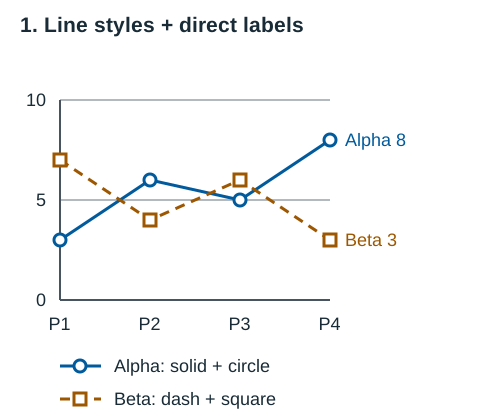
Use direct labels when there is room to place a name beside its series without hiding another value. Keep the line style and markers consistent across the whole chart. Here, the endpoint labels make the period-four comparison immediate: Alpha is 8 and Beta is 3.
The two series cross between observations. Neither the crossing nor a patch of identical gray should erase their identity. Repeated circles and squares help a reader reconnect the segments, while the dash pattern adds another cue. The text table supplies all four values rather than forcing someone to infer them from pixels.
With many series, adding more hues and increasingly subtle dash patterns can become harder to read. First ask whether a smaller selection or separate panels would answer the question more clearly. Do not move an endpoint label so far from its line that it looks attached to another series.
| Period | Alpha: solid, circle | Beta: dashed, square |
|---|---|---|
| P1 | 3 | 7 |
| P2 | 6 | 4 |
| P3 | 5 | 6 |
| P4 | 8 | 3 |
2. Grouped bars: stable order, patterns and numeric labels
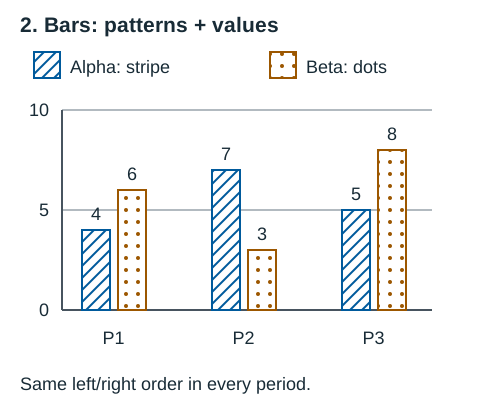
A grouped bar chart needs both category and series identification. Stable left/right order reduces the work of finding the same series in each group; the named pattern legend keeps the order from becoming an unexplained convention. Direct values let readers compare 7 with 3 without estimating the heights.
Use patterns large enough to survive the intended display size. Dense hatching may merge into a dark block on a phone or after export. Keep text outside the pattern, or give it an opaque reading area and check the resulting foreground/background pair. These bar values sit above the bars on white.
A needed bar outline or fill has a contrast question against its surrounding surface. That is separate from naming the series. A dark bar can be highly visible and still leave a reader unsure which group it represents. Conversely, a complete table can communicate the values even when a decorative chart is not the only route to understanding them.
| Period | Alpha: left, striped | Beta: right, dotted |
|---|---|---|
| P1 | 4 | 6 |
| P2 | 7 | 3 |
| P3 | 5 | 8 |
3. Status legend: words first, symbols as reinforcement
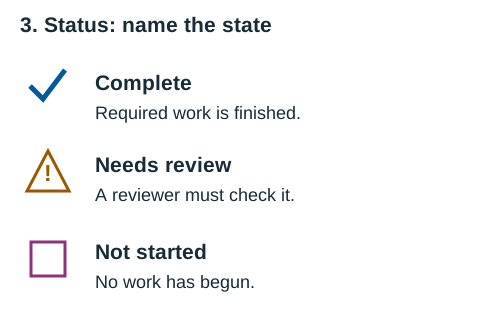
Do not assume that a green check, amber triangle or purple square has a universal meaning. Define the state in words where it is used. “Needs review” is more precise than a colored dot that might mean delayed, risky, pending or selected.
When the same status appears in a compact table, keep the word beside the icon where space permits. A tooltip that appears only when hovering adds access problems on touch devices and for keyboard users. If a compact representation is unavoidable, provide a clearly accessible way to reveal the meaning and test that interaction.
A state also needs to be distinguishable from its previous or neighboring state. For interactive controls, assess the required boundary and state cues under the relevant contrast criteria as well as the labels. The static legend here demonstrates naming; it does not certify a product’s controls or announce results to assistive technology.
| State | Visible symbol | Meaning |
|---|---|---|
| Complete | Check | Required work is finished |
| Needs review | Exclamation triangle | A reviewer must check it |
| Not started | Hollow square | No work has begun |
4. Discrete heatmap: number, category word and pattern
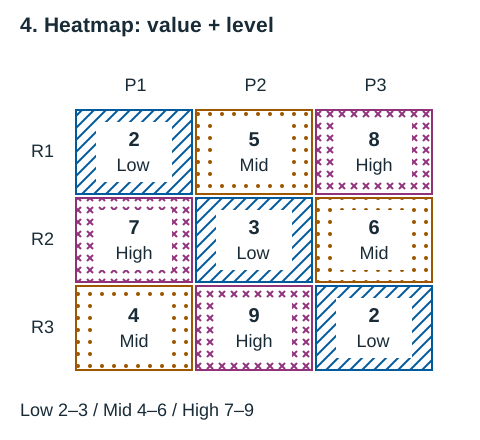
A heatmap can hide two different questions: the exact value and the category assigned to it. This example gives both. The thresholds are Low 2–3, Mid 4–6 and High 7–9, solely for this fictional dataset. A value of 6 is Mid; 7 is High. Do not copy these thresholds into real data without a defensible definition.
Keep the legend’s ranges explicit and include units and missing-data rules in a real chart. An empty cell should not silently mean zero, unavailable and not applicable at the same time. Label the intended meaning or use a separate defined representation.
Large or continuous heatmaps may need a different approach because a word and number will not fit in every cell. Supply an accessible data table or equivalent description and a usable way to inspect values. Required graphical information and decorative encoding have different contrast implications; a heatmap is not a blanket exception from making the information available.
| Row | P1 | P2 | P3 |
|---|---|---|---|
| R1 | 2 (Low) | 5 (Mid) | 8 (High) |
| R2 | 7 (High) | 3 (Low) | 6 (Mid) |
| R3 | 4 (Mid) | 9 (High) | 2 (Low) |
5. Scatter plot: shape distinguishes group membership
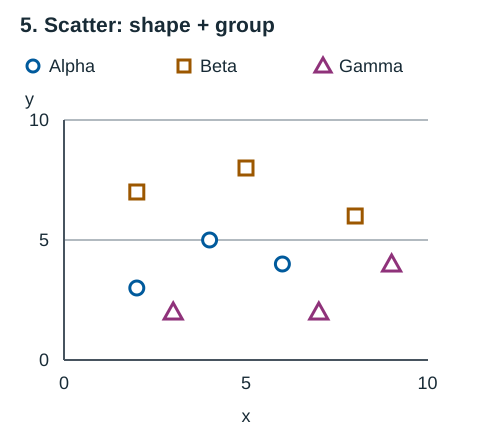
Use a small number of clearly different marker shapes. Circles, squares and triangles usually separate more clearly than tiny variations of one shape, but actual display size matters. At a small size, a hollow triangle may look like a dot. Check the exported chart rather than assuming the source file’s large markers will stay legible.
Shape distinguishes membership; it does not solve overlap. If several points occupy one position, a visible symbol alone may hide the count or another group. Consider separation, a labelled count or another design appropriate to the data. Any jitter or aggregation must be explained so the chart does not imply an exact coordinate that the data did not have.
This example has nine distinct fictional positions and no aggregation. Both axes run from 0 to 10. A real scatter plot needs axis names and units, data provenance and a careful explanation of what an association does or does not establish. A palette cannot fix an unsupported causal conclusion.
| Group and shape | Points (x, y) |
|---|---|
| Alpha — circle | (2, 3), (4, 5), (6, 4) |
| Beta — square | (2, 7), (5, 8), (8, 6) |
| Gamma — triangle | (3, 2), (7, 2), (9, 4) |
6. Small multiples: reduce overlap without changing the scale
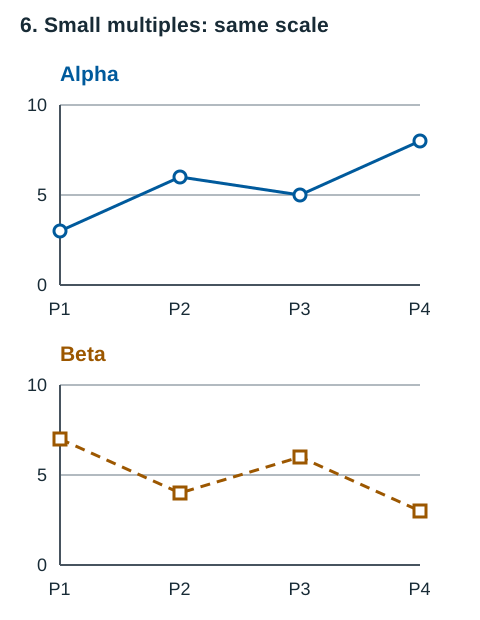
Separate panels can make each trend easier to follow. They introduce a new responsibility: align the axes and keep ranges consistent when readers are expected to compare heights. Here, Alpha’s 8 and Beta’s 3 are positioned using the same scale in both panels.
A separate automatic y-axis for each panel could make a small change look as large as a much bigger change. If different scales are necessary, show them plainly and explain the reason. Do not present the panels as directly comparable by height without that qualification.
The tradeoff is that an exact point-by-point comparison now requires looking between panels. Choose the layout for the question: an overlay helps compare series at a period; small multiples help follow each series when overlap is distracting. The complete Example 1 data table also applies to this figure.
Check the actual surface, text and required graphical parts
This palette uses opaque sRGB colors on white. The ratios below are computed from the hex values using WCAG relative luminance: convert each normalized sRGB channel to its linear value with the 0.04045 boundary, combine it with the luminance weights, then divide lighter luminance plus 0.05 by darker luminance plus 0.05. Threshold decisions use the unrounded result.
| Role | Hex | Computed ratio (rounded display) | Check applied |
|---|---|---|---|
| Alpha: line, markers, bar outline | #005A9C | 7.14:1 | 4.5:1 text and 3:1 required graphics |
| Beta: line, markers, bar outline | #9C5700 | 5.56:1 | 4.5:1 text and 3:1 required graphics |
| Gamma: scatter markers, pattern | #8F327A | 7.23:1 | 4.5:1 text and 3:1 required graphics |
| Body and numeric labels | #182B36 | 14.61:1 | 4.5:1 text and 3:1 required graphics |
| Axes and tick labels | #47545F | 7.77:1 | 4.5:1 text and 3:1 required graphics |
| Grid line — decorative here | #667582 | 4.74:1 | 3:1 checked; not needed to recover values |
Contrast (Minimum), 1.4.3, uses 4.5:1 for ordinary text and 3:1 for qualifying large text. A heading is not automatically large enough. The familiar large-text definitions are at least 18 points regular or 14 points bold, approximately 24 and 18.7 CSS pixels. A computed 4.499:1 does not pass a 4.5:1 threshold by rounding.
Non-text Contrast, 1.4.11, addresses required visual parts of graphical objects and controls at 3:1 against their adjacent colors. It does not mean that every pair of lines in a chart must contrast 3:1 with each other. Identify which parts are required to understand the chart, what they touch, and which alternative information remains available.
Recalculate for the actual implementation. A pale panel, transparent fill, gradient, selected state or dark theme changes the pair being assessed. Thin strokes and antialiasing can also make a nominally passing graphic harder to see, so use practical visual margins and adequate stroke width. These examples use 3-pixel series strokes and marker outlines; their grid lines are supporting guides, while labels and complete tables communicate the values.
None of these ratio checks establishes full WCAG conformance. Reading order, accessible names, keyboard access, interaction states, resizing and the accuracy of the information still require their own checks. Avoid labelling a palette “fully accessible” because one color pair passes.
Adapt the examples to your chart before publishing
Begin with the real question, units, periods and source. Replace the fictional values with your data and verify that the text table and plotted positions agree. Keep a note of missing values, uncertainty and any transformation. A chart with excellent contrast can still mislead through an incorrect scale or an unexplained category.
- Name every important series or state visibly. Choose a line style, pattern or shape that remains useful at the smallest intended size.
- Check labels against their actual backgrounds. Check the required graphical parts against relevant adjacent colors, including hover, focus and selected states where present.
- Read the chart without relying on hue. Try the grayscale view as one check, then inspect the actual label and symbol distinctions; do not treat it as a color-vision simulation.
- Provide complete accessible values or an equivalent meaningful description. Test any data reveal with keyboard and touch, including what is available before hovering.
- Compare the phone view and the exported file. Look for tiny markers, merged patterns, clipped endpoint names and legends separated from their chart.
- Verify source, dates, units and scale. Have another reader answer the chart’s intended question using the visible cues and text data.
Download the original data and chart-review sheet to keep the decisions together. You can also download each SVG above to inspect or adapt its labels and geometry.
For a brand report, use a color usage sheet to record each series’ color and second cue. For paper output, use a separate screen-to-print proofing workflow. A CSS grayscale view does not reproduce a printer, paper, profile or physical proof.
Sources and further reading
- W3C: Understanding Use of Color, WCAG 2.2 SC 1.4.1Visible alternatives to color, hue-dependent meaning, and the conditional role of lightness distinctions.
- W3C: Understanding Non-text Contrast, WCAG 2.2 SC 1.4.11Required graphical parts, adjacent colors, chart examples, exact threshold decisions and the limits of pairwise contrast assumptions.
- W3C: Understanding Contrast (Minimum), WCAG 2.2 SC 1.4.3Ordinary and large text thresholds, unrounded results and opaque sRGB relative-luminance calculation.